

Trying to use a telegram proxy in 2026 isn’t just about picking the first IP you find online. Most users run into trouble when their connection gets flagged or their region changes mid-session. The real headache comes when you think you’ve set it up right, but Telegram still hits you with suspicious login warnings or blocks.
What most people miss is that not all proxies hold up for actual Telegram use. Free proxies often drop out, change IPs unexpectedly, or get blacklisted fast. Even paid options can create new problems, some rotate IPs in the middle of a chat, some leak your real location, and some aren’t even compatible with Telegram’s protocols. That’s how you end up locked out or stuck in endless verification loops.
If you want a stable connection, you need to look beyond free lists and random “best proxy” blog posts. The details that matter: whether the proxy offers a fixed IP, how long it stays available, if it supports SOCKS5, and whether it matches the country you actually need. Teams handling multiple Telegram accounts, especially for business or client management, have to separate traffic and avoid cross-account contamination, or risk mass bans. And when the proxy drops, Telegram often forces a new verification step, which can break automation and manual workflows alike.
Getting the right Telegram proxy setup means understanding these risks and knowing what to check before you connect. Here’s what separates a workable setup from a future support ticket.
What Does a Telegram Proxy Actually Do?
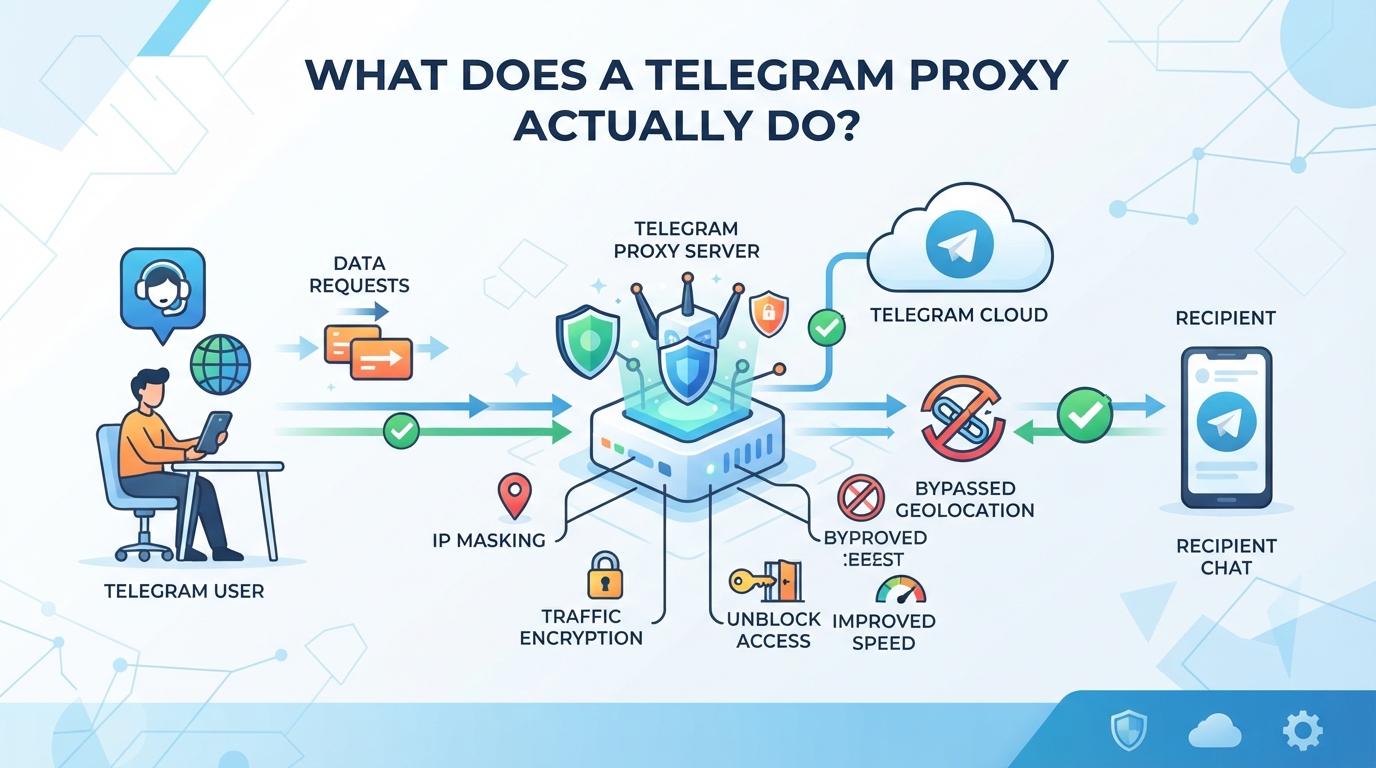
A Telegram proxy acts as a middleman between your device and Telegram’s servers. For the basics of traffic routing, see how a proxy server works. It hides your real IP address, can help you bypass local restrictions, and changes how Telegram sees your connection.
How a proxy changes your Telegram connection
When you connect through a proxy, your requests go to the proxy server first, not directly to Telegram. Telegram then sees the proxy’s IP, not yours, so your real network location stays hidden. Proxies can also let you reach Telegram in places where it’s blocked.
When Telegram proxies are most useful
Most people turn to proxies when Telegram is blocked by their internet provider or government. In those cases, a proxy can restore access by routing your traffic through another country or city. But it’s not just about censorship, sometimes you want to keep personal and work accounts separate, or avoid exposing your real IP if you run multiple accounts for business or client projects. That said, using a proxy won’t fix every problem. If the proxy server itself gets blocked, you’re back to square one. If you pick a proxy that changes its IP often, Telegram will keep asking for new logins or verification codes, which can break bots and cause lost messages. And if your proxy leaks your original IP, any privacy benefit disappears. The main point: a proxy can give you access and separation, but only if its behavior matches your actual workflow.
Proxy vs direct connection: what changes
- Speed: Proxies can slow down your connection, distance to the proxy and server load both matter.
- Reliability: If the proxy goes offline or changes IP, Telegram may log you out or prompt for verification again.
- Security: A proxy doesn’t encrypt messages; it only hides your IP. Sensitive data is still only as safe as Telegram’s own encryption.
A direct connection is simpler and usually faster, but it exposes your real IP and may be blocked in restricted regions. Proxies add flexibility but also extra points of failure.
The core tradeoff with any proxy setup is between access, privacy, and reliability. Next, it’s worth breaking down which proxy types Telegram actually supports, and why that matters for your setup.
Which Proxy Types Does Telegram Support, and What’s the Difference?
Telegram lets you connect through two proxy types: SOCKS5 and MTProto. Both help you reach Telegram servers even when your network restricts access, but they handle traffic and privacy in different ways. The choice affects setup, compatibility, and how much information your network provider can see.
How SOCKS5 proxies work with Telegram
SOCKS5 is a standard protocol for routing internet traffic through a proxy server. Telegram supports SOCKS5 natively. When you set up a SOCKS5 proxy in Telegram, you enter the server address, port, and (if needed) username/password. This proxy routes all Telegram traffic, including messages, media, and calls, through the proxy IP.
Here’s a quick comparison:
| Proxy Type | Setup Steps | What Gets Routed | Extra Features |
|---|---|---|---|
| SOCKS5 | Address, port, creds | All Telegram traffic | Can use with other apps if supported |
| MTProto | Server address only | Only Telegram traffic | Obfuscates traffic; harder to block |
Caption: SOCKS5 vs MTProto setup and routing scope for Telegram proxies.
SOCKS5 works well for users who want to control which proxy IP they use, need to separate traffic for different accounts, or already use SOCKS5 proxies for other tools. The catch: SOCKS5 does not hide the fact that you’re using Telegram. Network admins can see it’s Telegram traffic, even if they can’t read the message content.
What is an MTProto proxy?
MTProto is Telegram’s own proxy protocol. It’s designed to look less obvious on the network, traffic is obfuscated, making it harder for firewalls or ISPs to spot and block. You only need the server address to set it up in Telegram. MTProto proxies only work with Telegram, not with browsers or other apps.
For users facing strict network blocks or deep packet inspection, MTProto can be the only option that works. But you don’t get to pick credentials or use the proxy with other software.
SOCKS5 vs MTProto: Key differences for users
Setting up SOCKS5 usually takes more steps, credentials and port numbers, while MTProto is plug-and-play. SOCKS5 proxies can be reused outside Telegram, but MTProto is locked to Telegram itself. If you want to keep your proxy use flexible, SOCKS5 is the safer bet. If your main goal is to dodge network detection, MTProto wins.
Choosing the wrong type means wasted setup effort or sudden disconnects when restrictions change. Before connecting, double-check which protocol matches your workflow and local restrictions, or you’ll end up troubleshooting rather than chatting.
What to Check Before Choosing a Telegram Proxy
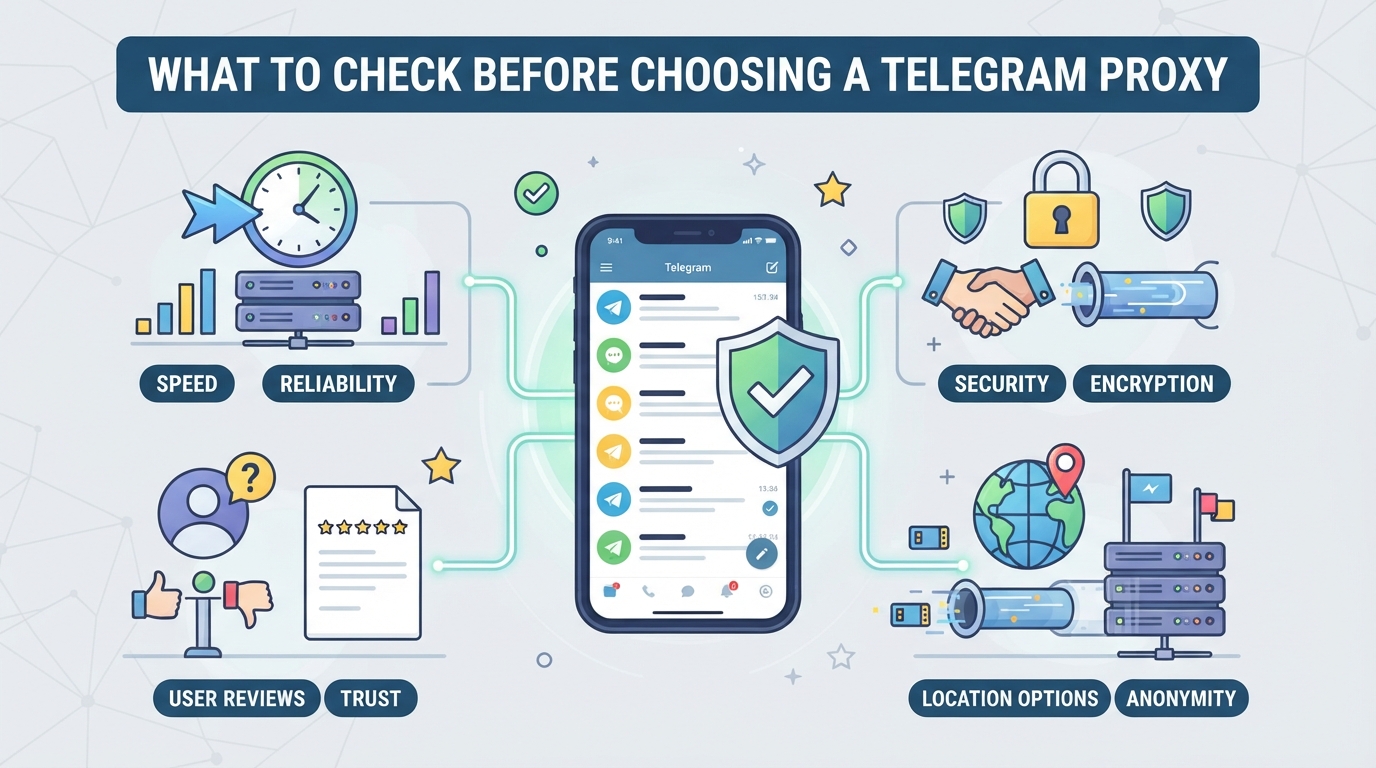
The difference between a smooth Telegram session and a day wasted on troubleshooting usually comes down to the details you check up front. Skip the right step, and you risk unstable connections, new verification demands, or even mass account lockouts. Here’s what to look at, before you hit Connect.
Why proxy location and IP type matter
Location isn’t just about speed, it’s about matching what Telegram expects for your account. The residential vs. datacenter proxy comparison explains how these IP sources differ. If you pick a proxy in a country that doesn’t fit your account’s usual pattern, you’ll trip Telegram’s security systems. Residential IPs can help mimic real users, but not all “residential” claims hold up. Datacenter IPs are easier to get but often flagged sooner, especially if lots of accounts share the same subnet. If you need to appear local to a region, say, for client accounts in specific countries, look for city-level targeting, not just “US” or “UK.” The wrong choice can force identity checks or even block access.
Session length and IP rotation: what’s at stake
- Check if your workflow needs the same IP for hours or just a single login.
- For multi-step tasks (posting, message scheduling, automation), use proxies that keep the same IP during the whole session. Compare the trade-offs in this dynamic versus static residential proxies guide.
- Avoid rotating proxies for actions that can’t handle unexpected session drops, Telegram may treat a new IP as a hijack attempt.
Protocol and authentication support
SOCKS5 is Telegram’s standard, but some proxies only offer HTTP or don’t use authentication at all. Open proxies get blocked fast or become malware targets. Username and password credentials offer basic protection, but read the provider’s docs, Telegram won’t prompt for a password if the proxy rejects the connection outright.
- Confirm the proxy supports SOCKS5 or MTProto if you need advanced features like encrypted transport.
- Prefer proxies with username/password login; never use open, unauthenticated proxies for accounts you care about.
- Test the proxy before assigning it to business or client accounts, failed connections can trigger Telegram’s anti-abuse warnings.
The biggest risk: using the wrong IP type or session setup can lock you out and force extra account verification. The extra five minutes checking these details now beats hours of recovery work later.
Done right, these checks mean less time firefighting and more time managing your Telegram accounts. Next, see how business teams handle multi-account workflows without tripping up Telegram’s defenses.
How PuraRoute Supports Multi-Account and Social Media Workflows with Telegram Proxies
For teams juggling multiple Telegram accounts, the biggest headache is keeping sessions stable and isolated. Proxy dropouts or shared IPs trigger Telegram security checks, which can break automation and force manual re-verification. That’s where PuraRoute’s static proxy resources fit, giving each account a fixed, dedicated IP mapped to its own browser or tool.
Assigning stable IPs for long-term Telegram accounts
PuraRoute Static Residential Proxies let you assign a dedicated residential IP to each authorized Telegram workflow for the full plan period. That means you can separate client or brand traffic and keep sessions consistent, no IP hopping mid-workflow. Just remember, static residential IPs stay fixed only for the purchased duration and must be renewed before expiry to avoid losing the resource.
Using static native proxies for persistent browser or automation sessions
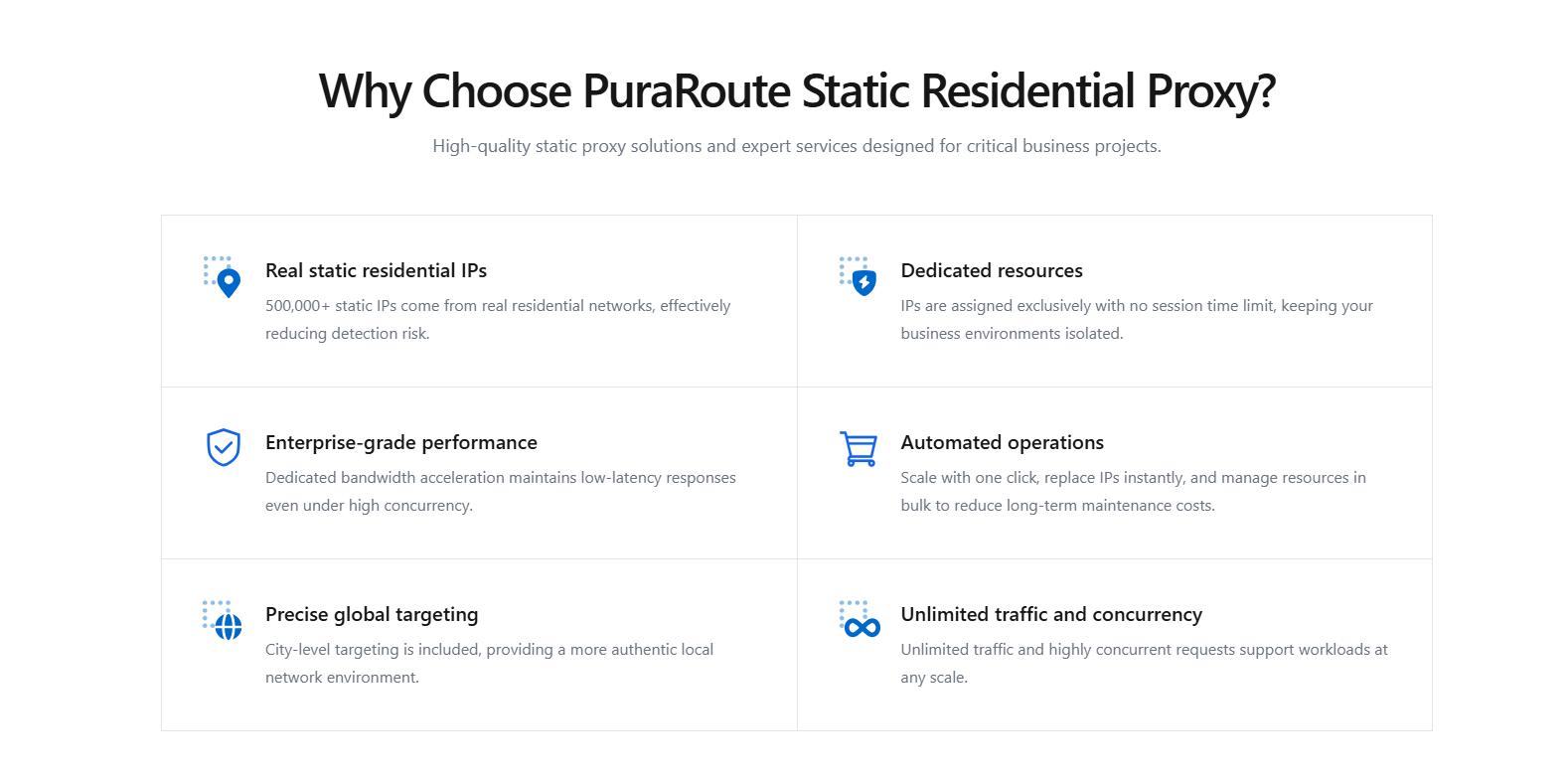
Static Native Proxies, marked as ISP_NATIVE, offer a stable native ISP route for Telegram bots or browser automation. You pick the region, check live inventory, and choose a duration, 7, 30, or 90 days, based on what’s available. If the resource expires and isn’t renewed in time, it can’t always be recovered.
Integrating proxies with Telegram clients and automation tools
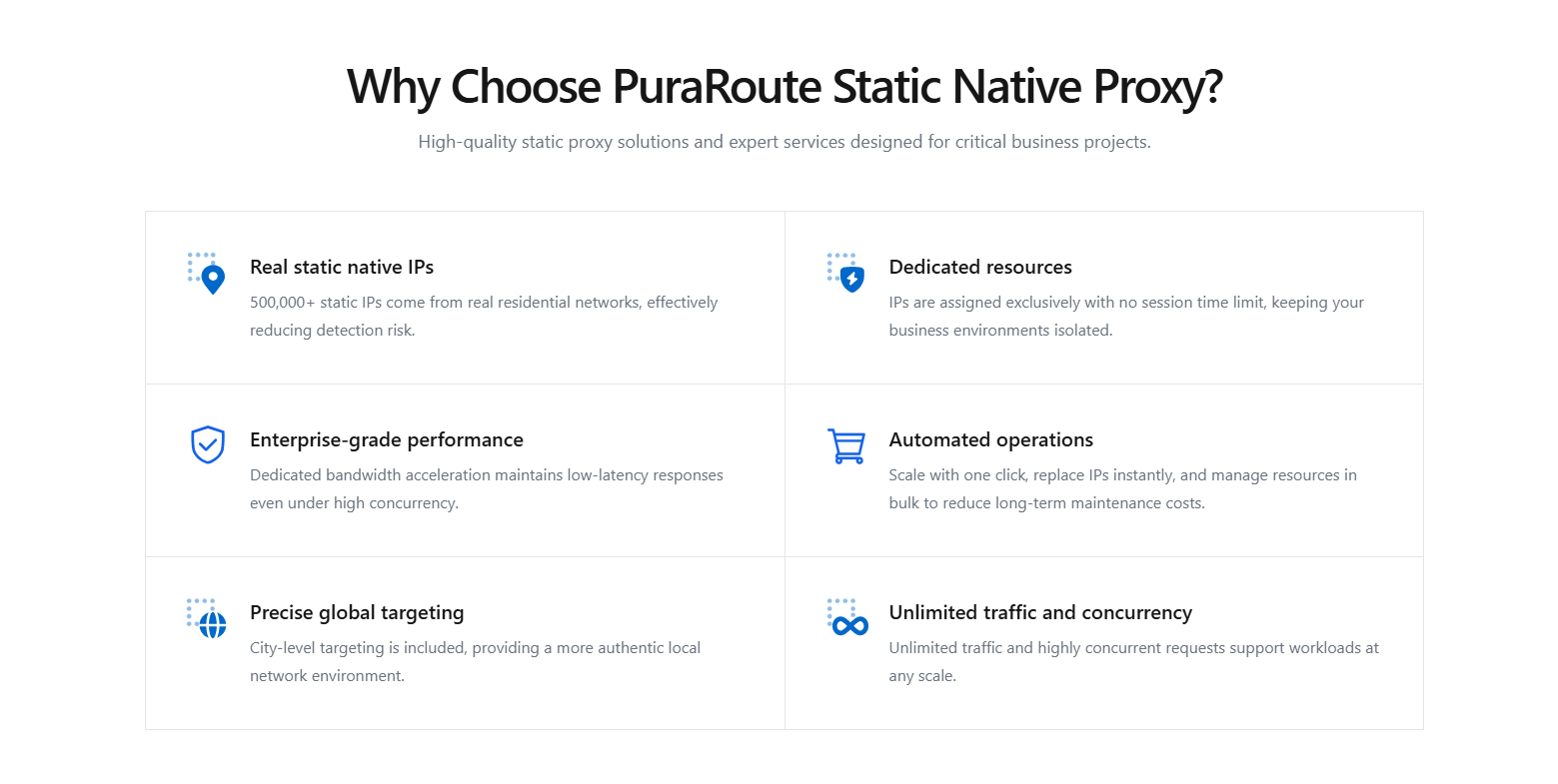
PuraRoute supports SOCKS5 and HTTP(S) protocols, so you can assign each proxy to a specific browser profile, Telegram client, or automation script with standard credentials. The setup is compatible with both manual and automated Telegram workflows.
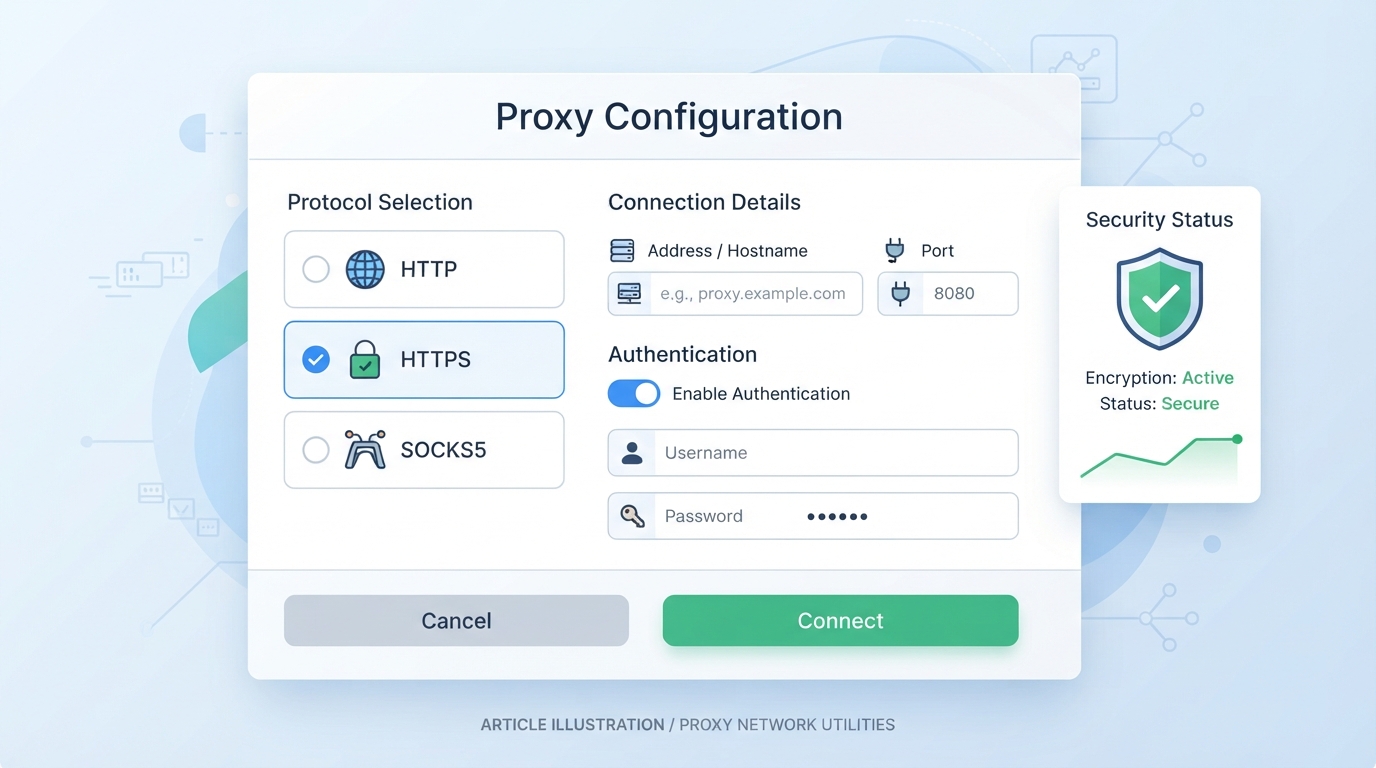
Ready to set up? The next section walks through connecting a SOCKS5 proxy in Telegram.
How to Set Up a SOCKS5 Proxy in Telegram (Step-by-Step)
Setting up a SOCKS5 proxy in Telegram takes less than five minutes if you have the right details. Here’s how to avoid common mistakes and actually get Telegram connecting through your chosen proxy, without ending up locked out or rerouted to a dead IP.
Finding reliable SOCKS5 proxy details
- Get the proxy’s host (IP or domain), port, and, if required, username and password from your provider’s dashboard or email. See this proxy IP setup guide for a broader explanation of endpoint and protocol configuration.
- Double-check that the proxy is SOCKS5, not HTTP or MTProto. Telegram will only accept SOCKS5 or MTProto in its proxy settings.
- Avoid public or free proxy lists: they’re often overloaded, blacklisted, or leak your session data, especially risky for account logins.
- If the proxy provider offers country or city selection, confirm the location matches your target. A mismatch can get your account flagged or block key Telegram features.
Entering proxy settings in Telegram
- Open Telegram’s Settings. On Android: go to Data and Storage > Proxy Settings. On iOS: tap Data and Storage > Proxy. On desktop: Settings > Advanced > Connection Type > Add Proxy.
- Choose SOCKS5 as the type. Enter the host, port, and (if needed) login/password.
- Save and enable the proxy, look for the “Connected” status or green indicator.
- If you get a “Connection failed” error, recheck the credentials and make sure the proxy IP is not region-blocked.
Testing and troubleshooting your connection
- Send a message or check public channels, if they load, the proxy is working.
- Visit Telegram’s Active Sessions page (Settings > Devices) to confirm your IP matches the proxy’s location.
- If you see long delays, failed media loads, or repeated disconnects, your proxy may be unstable or overloaded, switch to a different IP if possible.
- Remove the proxy if you can’t connect at all; Telegram will revert to direct connection if allowed by your network.
Next: Know the limits, some proxies drop or expose your session, risking bans or lost access. Here’s what to watch out for before relying on a proxy long-term.
What Risks and Limitations Should You Know Before Using a Telegram Proxy?
Even with the right SOCKS5 settings, using a proxy for Telegram can introduce new headaches, some obvious, others easy to miss if you only focus on connection speed or location. Here’s what you need to watch out for before relying on a proxy.
Connection failures and proxy bans
Proxies often stop working when Telegram detects suspicious usage or too many logins from the same IP. That can mean sudden disconnects or endless verification requests. If your proxy dies, you’re forced to re-authenticate, and if you’re automating, that break can grind your workflow to a halt.
Privacy and data exposure risks
Your traffic passes through the proxy provider, not Telegram directly, so the proxy operator can see unencrypted data and connection metadata.
- If you use a public or unknown proxy, your login info or messages could leak.
- Safer move: only use proxies from sources you trust, and never send sensitive data without end-to-end encryption.
Account and usage limitations
Running multiple accounts or switching IPs too often can trigger Telegram’s anti-abuse systems. That may mean bans, extra verification, or account cooldowns. Stable, dedicated proxies reduce these triggers, but even then, one mistake, like letting two accounts overlap on the same IP, can get both flagged.
If you start seeing more captchas or failed logins, it’s a sign to check your proxy’s health before blaming Telegram itself.
How to Troubleshoot Common Telegram Proxy Problems
Most telegram proxy failures come down to the basics, wrong credentials, unsupported proxy types, or a dead endpoint. PuraRoute’s static residential proxy troubleshooting FAQ covers common credential, endpoint, and connection checks. If Telegram keeps disconnecting or won’t connect at all, start by double-checking the simple stuff before blaming the service.
Checking your proxy credentials and settings
Wrong host, port, username, or password will block you every time. Double-check that you’re using the right protocol, Telegram only supports SOCKS5 or MTProto, not HTTP proxies. If the proxy needs authentication, a typo in the username or password is enough to break the connection. Protocol mismatches are the top cause of instant failure, don’t skip this check.
Testing proxy availability and speed
- Ping the proxy host to see if it’s online.
- Try loading a test site through the proxy’s browser settings.
- If Telegram is slow or drops, check if your proxy is rate-limited or overloaded.
When to try a different proxy or provider
If you see repeated connection errors, or Telegram asks for verification after every reconnect, your proxy is likely blocked or unstable.
- Switch to a different SOCKS5 or MTProto proxy.
- Avoid free lists, test with a paid or dedicated option.
- Restart Telegram after changing proxy settings.
When a Telegram Proxy Is Not the Right Solution
When network blocks go beyond proxy circumvention
Some networks block Telegram at the protocol or app level, not just by IP address. In these cases, even a working proxy won’t restore access, you’ll see errors or no connection at all, and switching proxies won’t help.
When privacy or compliance needs exceed what a proxy can offer
A proxy only hides your IP from Telegram’s servers; it doesn’t shield your account or messages from deeper monitoring or legal requests.
- Telegram can still see account activity, device info, and linked phone numbers.
- If you need stronger privacy or legal compliance, use end-to-end encrypted chats and read up on local regulations before trusting a proxy.
Frequently Asked Questions About telegram proxy
Can I use a proxy to run multiple Telegram accounts at once?
Yes, you can run several Telegram accounts at the same time if each account uses its own proxy IP and session. This helps keep account activities separate, but it does not guarantee full privacy. Telegram may still link accounts if you reuse phone numbers, devices, or make other obvious connections, so follow the platform’s rules.
Does Telegram support both SOCKS5 and MTProto proxies in 2026?
Telegram continues to support both SOCKS5 and MTProto proxy protocols. You can choose either option in the app’s settings. SOCKS5 is often used for general proxy connections, while MTProto is Telegram’s own protocol. Be sure to follow the correct setup steps, since the configuration is a bit different for each.
Are free Telegram proxies safe to use?
Free proxies for Telegram can be risky. Many free services log your data, have slow speeds, or may inject ads. Some even leak your information or get blocked quickly. If you care about privacy or account security, it’s safer to use a trusted paid provider, especially for important or sensitive accounts.
How do I know if my proxy is working in Telegram?
Check if Telegram shows you as connected through the proxy in settings. You can also visit a site to confirm your IP address has changed. Try sending and receiving messages, if everything works without errors, your proxy is active. If messages fail to send or load, there may be a proxy issue.
What should I do if my Telegram proxy stops working suddenly?
First, double-check your proxy settings and credentials. Sometimes, the IP you’re using may be blocked. Try switching to another proxy server or protocol. Also, check if your proxy provider is having service problems. Restart Telegram or your device if the issue doesn’t clear up.
If you need consistent access for managing multiple accounts or want to avoid sudden changes in network identity, it's worth taking a closer look at which proxy type matches your actual workflow rather than just focusing on region or protocol. Testing with real scenarios is the best way to confirm if a static or rotating setup fits your needs.
