

You set up a proxy, expect your IP to be hidden, and then a WebRTC leak test shows your real address anyway. That’s not a theoretical risk, browser WebRTC features can expose your actual IP even behind a proxy or privacy tool. Users who think they’re covered often find out too late that some websites, scripts, or ad platforms are still able to detect their network location through a browser’s own real-time communication engine.
Most people focus on hiding their IP with a proxy or change connection settings, but skip the step of running a webrtc leak test. A proxy IP address setup guide can help clarify what a proxy changes and what it cannot protect. That’s where the trouble starts: a hidden IP that isn’t actually hidden when it counts. Not all browsers handle WebRTC leaks the same way, and some detection scripts can pick up both local and public IP addresses regardless of your proxy setup.
The practical issue is this: it’s not enough to just switch proxy types or pick a different protocol. You have to check if your browser’s WebRTC implementation is leaking any IP information, otherwise, even a well-configured proxy leaves you exposed. A test for WebRTC leaks tells you if browser-level privacy holes remain. If you skip this, you might only find out when your account gets flagged, your session gets restricted, or your automation stops working.
So before you trust that your IP is masked, it pays to check for leaks the way real operators do. Here’s how to run a proper test and fix what you find.
How Does a WebRTC Leak Test Reveal Your Real IP Address?
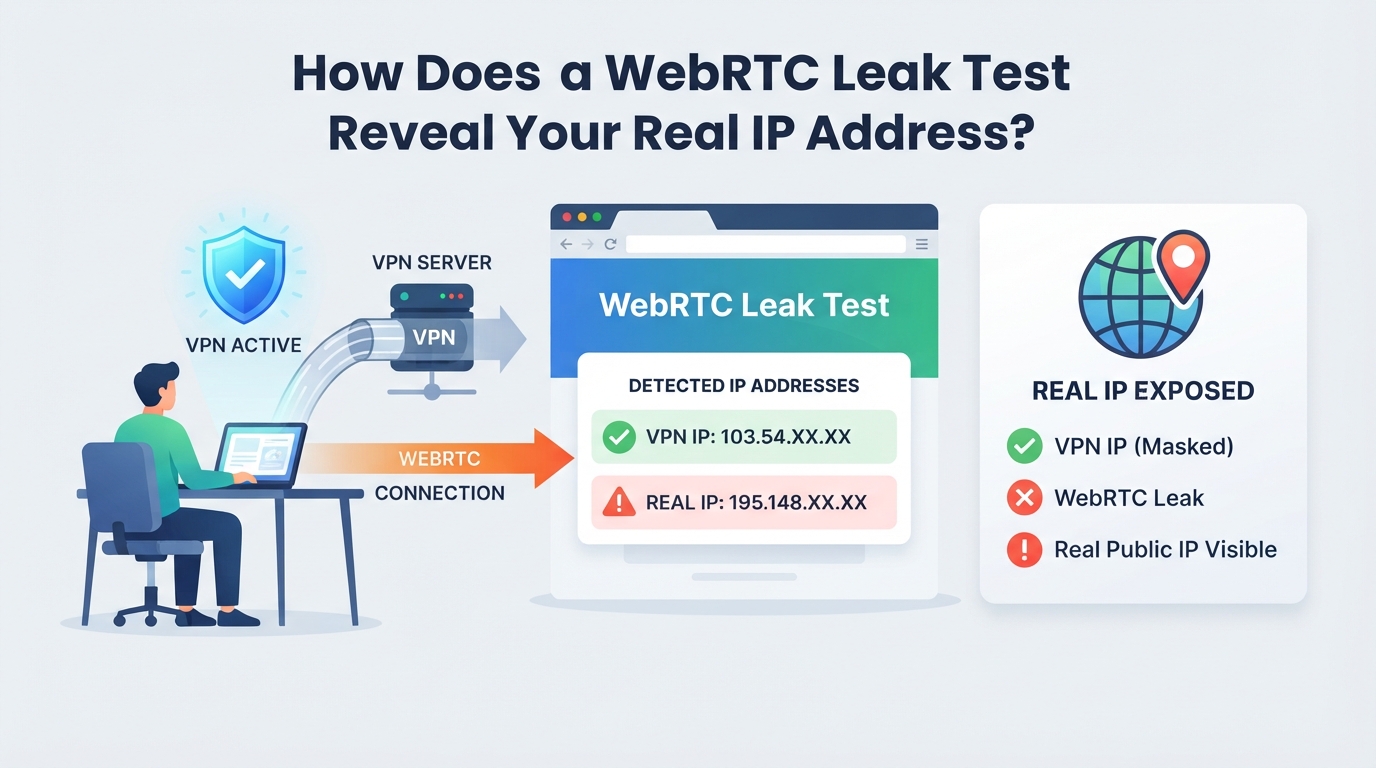
What Is WebRTC and Why Can It Leak IPs?
WebRTC lets browsers set up real-time calls and peer-to-peer connections. To do this, browsers share both your local network IP and sometimes your real public IP, even if you’re using a proxy or proxy. That means your actual address can leak out before any network masking kicks in.
How to Run a WebRTC Leak Test in Your Browser
To check for leaks, visit a trusted browser test page like browserleaks.com/webrtc or ipleak.net. Watch for the section showing WebRTC-detected IP addresses. If you see your home or real public IP, that’s a sign your proxy isn’t blocking everything. Sometimes only a local network IP shows up, this might not seem dangerous, but it can still reveal your office or home network structure.
Be aware: some browsers update their WebRTC handling with each release, so what worked last month might not work today. Always compare the IPs shown to the IP you expect from your proxy or proxy. If anything doesn’t match, your setup is leaking. A single missed IP here can break privacy for every session, don’t skip this check.
What Results Mean: Local vs Public IP Leaks
- Local IP leaks show your device’s network, not your location, but can help fingerprint you
- Public IP leaks reveal your true internet address, this breaks privacy and geo-masking
- If you see two or more IPs, the public one is the bigger risk; check both before moving on
Which Browsers and Settings Are Most Vulnerable to WebRTC Leaks?
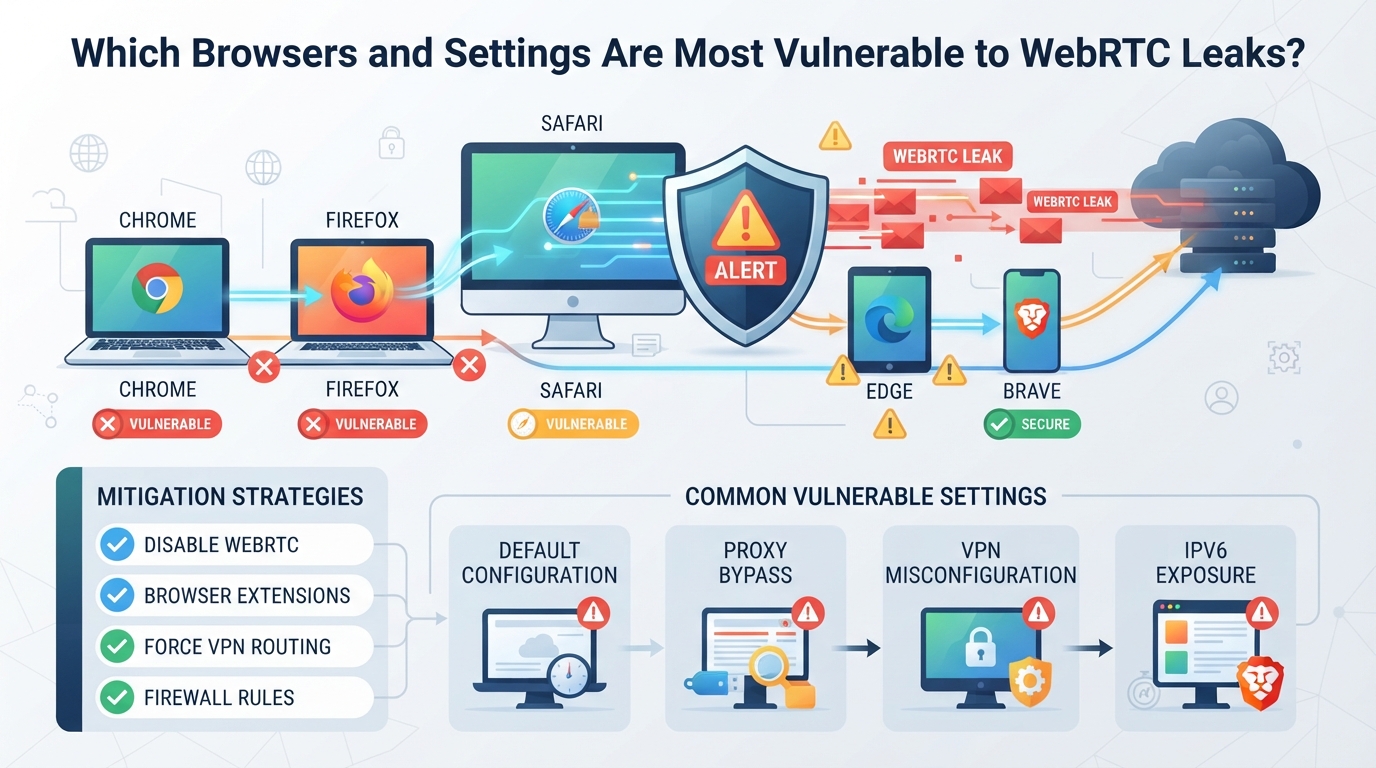
Browsers don’t all play by the same rules when it comes to WebRTC leaks, some expose private IPs even if you use a proxy or change your network settings. If you skip a proper leak test, just switching browsers or tweaking settings won’t keep your real IP hidden.
How proxys and Proxies Interact with WebRTC
Most proxys and proxies only mask your traffic at the network level. They don’t touch browser-level WebRTC behavior, so WebRTC can still reveal your real IP to sites or scripts. Browser settings can override network masking, leaving you exposed even if your proxy is solid.
Browser-by-Browser WebRTC Leak Risk
Chrome and Edge are notorious for leaking local and public IPs through WebRTC unless you block or disable it. Firefox lets you turn WebRTC off in settings, but the default is still “on,” so you’re at risk unless you change it. Safari often restricts WebRTC features but doesn’t guarantee protection, especially after updates, some versions quietly re-enable it. Opera follows Chrome’s lead, so it’s just as leaky without add-ons. Extensions can help, but many only block WebRTC on HTTP(S), not SOCKS5, and some break video conferencing if you disable too much.
Here’s how the risk stacks up:
| Browser | Default WebRTC Leak Risk | Built-in Disable Option | Extension Support | Typical Edge Case |
|---|---|---|---|---|
| Chrome | High | No | Yes | Video calls may break |
| Edge | High | No | Yes | Settings reset after update |
| Firefox | Medium | Yes | Yes | Needs manual config |
| Safari | Low–Medium | No | Limited | Updates can re-enable |
| Opera | High | No | Yes | Same as Chrome |
Common Settings and Extensions That Cause Leaks
- Default browser settings usually leave WebRTC enabled, check for hidden toggles or flags.
- Some extensions block WebRTC, but updates can reset permissions or disable protection.
- Always run a WebRTC leak test after browser updates, new extension installs, or settings changes; leaks often return without warning.
If your browser’s settings or extensions don’t fully block WebRTC, even a strong proxy can’t stop IP leaks. Next, see how advanced setups can help control the risk.
How Advanced Proxy Solutions Help Control WebRTC Leak Risks
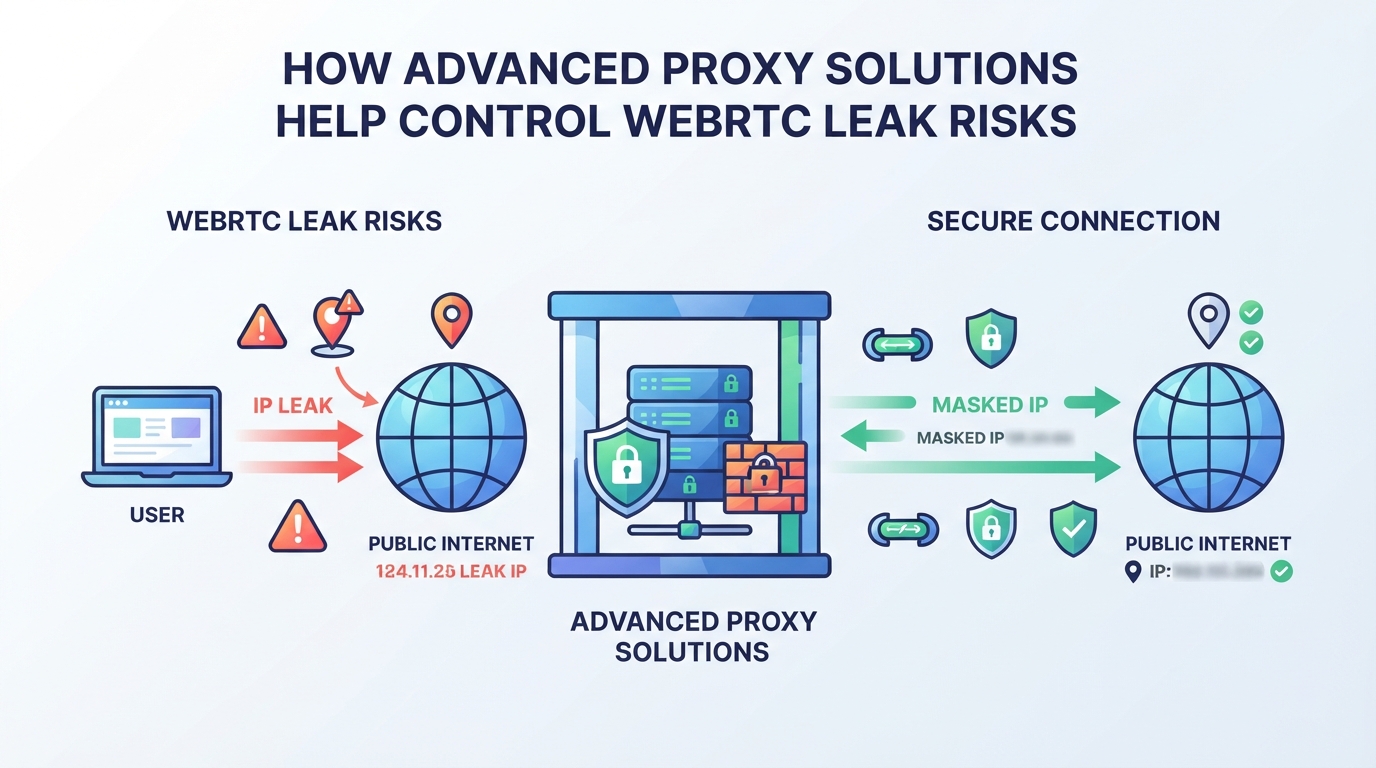
Switching to a proxy doesn’t automatically solve WebRTC leaks. The real problem is that browser-level WebRTC can reveal your true IP, even when your proxy session looks solid. Operators running a webrtc leak test often find that, unless WebRTC is blocked or configured correctly, the browser can expose local or public IPs. That’s why you can’t just rely on proxy rotation or a fixed IP; you have to match proxy type with browser settings and session requirements. The dynamic versus static residential proxy guide explains when each session type fits. Here’s how PuraRoute’s advanced proxy options actually interact with leak tests and where each fits in a typical workflow.
Static Residential Proxies: Fixed IP for Longer Sessions
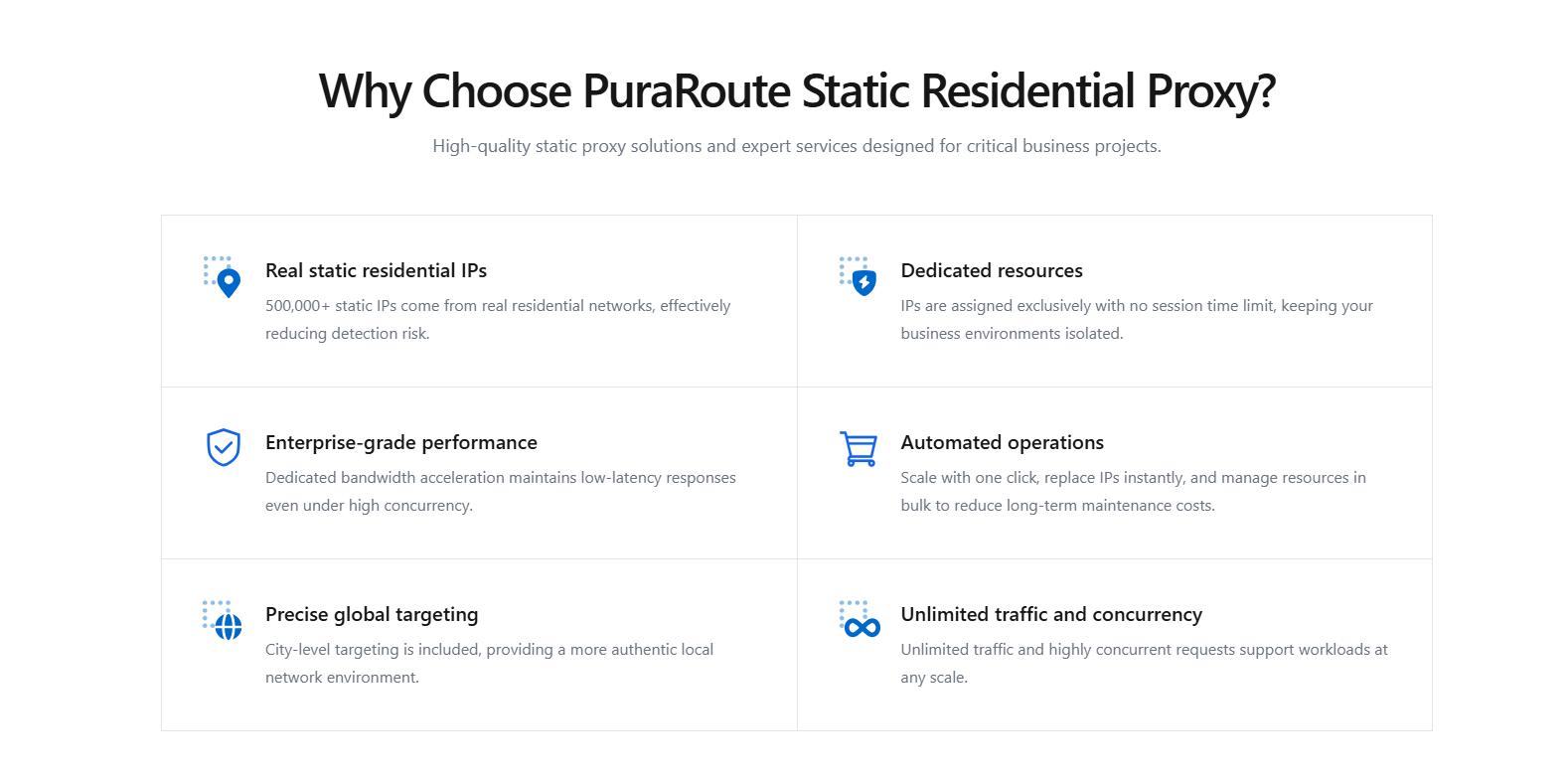
Static residential proxies from PuraRoute lock in a dedicated residential IP for the length of your plan, making them a strong fit for persistent browser profiles and account operations where stability matters. Unlimited traffic lets you run long sessions without worrying about usage caps. But here’s the catch: even with a fixed exit IP, WebRTC can still leak your local IP if the browser doesn’t restrict its peer-to-peer connections. So for operators running sensitive workflows, the fixed IP only protects your public-facing identity, WebRTC settings in your browser remain a potential exposure risk. If you need to keep one IP for allowlists or automation, static residential proxies solve the network problem, but browser configuration is still up to you.
Rotating Residential Proxies: IP Rotation and Session Control
Rotating residential proxies from PuraRoute let you change IPs frequently, with sticky sessions offering temporary consistency for multi-step tasks. This setup is ideal for scraping or monitoring where you need to reduce avoidable access interruptions and cycle through different locations. But frequent IP changes won’t stop WebRTC leaks, your browser might still show the real local IP unless you disable or restrict WebRTC. So, while these proxies give you flexibility on the network side, browser privacy settings remain the weak link.
Static Native Proxies: Native ISP Route and IP Consistency
Static native proxies offer fixed ISP-native IPs, supporting workflows that depend on long-term identity, like maintaining trusted sessions or consistent automation. You pick the region, check inventory, and set the duration before purchase. However, even with a native route, a WebRTC leak test will depend entirely on browser configuration for full masking. The proxy handles the network side, but any leak comes from the browser unless WebRTC is tightly controlled.

Proxy type solves part of the problem, but to fully block WebRTC leaks, you’ll need to handle browser settings head-on. The next section walks through practical steps to close those gaps.
What Steps Can You Take to Prevent WebRTC Leaks in Practice?
It’s not enough to just set a proxy and call it done, WebRTC can still leak your real IP if the browser isn’t locked down. Here’s how to combine browser settings, extensions, and routine checks to actually close the hole.
How to Combine Proxy and Browser Settings for Maximum Protection
Set up your proxy credentials in the browser (or in your automation tool), then run a WebRTC leak checker. If any public or local IP shows up that matches your real network, not the proxy, your setup isn’t secure yet.
How to Disable WebRTC in Popular Browsers
Disabling WebRTC isn’t always a one-click change. In Chrome, install an extension like “WebRTC Control” that blocks WebRTC at the browser level, just flipping proxy settings won’t stop leaks here. Firefox lets you set media.peerconnection.enabled to false in about:config, which fully blocks WebRTC. Microsoft Edge (Chromium-based) uses the same extensions as Chrome, but updates can break extension behavior. Safari mostly disables WebRTC by default, but check “Develop > Experimental Features” in case it’s enabled after an update. Opera relies on Chrome’s extension model, so use “WebRTC Leak Prevent”. No matter the browser, test your settings with a fresh WebRTC leak test after each change, especially after browser updates. If you skip this, you’ll miss silent re-enables that expose your local IP when you least expect it.
Common Mistakes and How to Avoid Them
- Relying on proxy or proxy alone, WebRTC leaks still happen if browser settings aren’t changed
- Forgetting that browser updates can silently switch WebRTC back on
- Trusting settings without retesting, always rerun a leak test after any change
If you don’t recheck after updates, you risk leaking your real IP without realizing it. Keep your test routine tight, or you’ll only catch mistakes when it’s too late.
How to Interpret WebRTC Leak Test Results and Next Steps
A WebRTC leak test tells you if your browser is giving away your real IP address, even when you’re behind a proxy or other privacy tools. If you see your actual public IP or sensitive local IP in the output, your setup isn’t safe. That’s the moment to act, not to assume the proxy is handling everything.
What If Your Real IP Is Still Leaking?
If your real IP shows up in the test, disable WebRTC in browser settings or install a WebRTC-blocking extension right away. Double-check your proxy or proxy setup, misconfigured routes can leave gaps. After making changes, retest to confirm the IP is hidden. If leaks persist, look into advanced proxy or browser solutions.
When Is a Local IP Leak a Real Concern?
Local IP leaks matter most in environments where internal network mapping matters, think corporate offices, research labs, or any situation where revealing your internal address could help an attacker pinpoint your device. For example, if you’re running sensitive automation or account work in a shared workspace, a local IP leak can expose your device to targeted attacks or internal monitoring. In these cases, masking local IPs is not just a privacy issue; it’s a direct security risk. But for home users on a generic router, the local IP (like 192.168.1.10) is usually less critical. Still, the risk increases if you’re using shared Wi-Fi or handling confidential tasks. The real problem is when both your public and local IPs leak during a browser WebRTC privacy check, that points to a configuration hole you shouldn’t ignore.
How to Monitor for Future WebRTC Leaks
- Retest after browser updates, new versions can reset settings or change behavior.
- Watch for new extensions or plugins, they sometimes re-enable WebRTC or change network paths.
- Set calendar reminders to run a quick leak test monthly, or after any major change in your privacy tools.
Missing these steps means you’re risking exposure every time your browser changes. Next, it pays to look beyond proxies for other risks you might not be seeing yet.
When a Proxy Solution Is Not Enough: Other Privacy Risks to Consider
Switching proxy types and tweaking browser settings can help with WebRTC leaks, but real privacy risks go way beyond IP exposure. Even if your WebRTC leak test comes back clean, there are other ways your identity can slip, sometimes without you noticing.
Browser Fingerprinting and Tracking
Fingerprinting doesn’t care about your IP. It builds a profile from browser details, fonts, screen size, and even how you move your mouse. Proxies and proxys rarely block these signals. If you want to see how unique your setup looks, tools like AmIUnique and Panopticlick show how easy it is for sites to track you across sessions.
Cookies, Extensions, and Other Leak Vectors
cookies stick around long after you switch IPs. If you log into a site, then change your proxy, old cookies can still link your activity, so clearing them matters. Extensions can be even riskier; some inject scripts or open background connections that bypass proxy settings. For example, a social login extension might keep sending real device data straight to its server, no matter what proxy you use. To audit, open your browser’s extension list and disable anything you don’t trust. Run a fresh session in incognito mode, clear all cookies, and watch for pop-ups or background requests. If your automation breaks or you see unexpected account prompts, that’s usually a sign something other than IP is leaking. Real operators test these vectors before starting sensitive workflows, not after an account gets flagged.
When to Seek Professional Privacy Solutions
- If you’re running high-value accounts or business automation, look at enterprise-grade privacy tools.
- When browser extensions or fingerprinting are causing issues, consulting a privacy specialist can help map out leak points.
- Balance usability and security, locking down everything makes daily work harder, so test changes before rolling them out.
Before you run sensitive workflows behind a proxy, check these other risks, leaks aren’t always about IP.
What to Test Before Running Sensitive Workflows Behind a Proxy
If you skip basic checks, your real IP could slip through, even with a proxy in place. For the network side of the workflow, the PuraRoute proxy connection overview covers supported connection methods and session controls. The fastest way to catch leaks is to think like an attacker: test, confirm, and monitor before any sensitive work begins.
Checklist for Secure Proxy Workflow Setup
- Run a WebRTC leak test to see if your browser exposes your real IP, not just the proxy IP.
- Verify that proxy credentials are correct and session behavior matches your expectation, rotating or sticky.
- Check browser settings and disable or remove extensions that might re-enable WebRTC or override proxy controls.
How to Document and Monitor Your Setup
- Keep a record of your proxy settings, browser configuration, and leak test results for every workflow.
- Schedule periodic retests, especially after browser or extension updates.
- React fast if a leak is found: pause automation, reconfigure, and retest before resuming.
Common Workflow Errors and How to Fix Them
Sometimes the biggest slip comes from a small change. Updates or mismatches can break your setup and leave you exposed without warning.
- Double-check proxy credentials, typos or outdated info can force fallback to your real IP.
- Watch for browser updates; they can reset privacy settings and re-enable WebRTC.
- Audit installed extensions, some can silently turn WebRTC back on or bypass proxy rules.
If you catch a leak here, fix it before your next run, finding out after a ban or account lock is too late.
Frequently Asked Questions About webrtc leak test
Can a proxy alone prevent WebRTC leaks?
No, using a proxy by itself won’t stop WebRTC leaks. WebRTC can reveal your real IP address through your browser, even if you’re connected to a proxy. To block WebRTC leaks, you need to disable WebRTC in your browser settings or use a browser extension that blocks WebRTC functions. A proxy only changes your network path, not browser settings.
Is a webrtc leak test necessary if I use a proxy?
Yes, running a webrtc leak test is still important. Many proxys do not block WebRTC leaks by default. Even with a proxy active, your browser might still send your true IP address through WebRTC. Testing helps you catch leaks before you start sensitive work online.
How often should I run a webrtc leak test?
You should run a webrtc leak test after any major change, like updating your browser, switching proxies or proxys, or before handling private tasks. Regular checks make sure your IP stays hidden and nothing has changed in your security settings.
What’s the difference between a local IP leak and a public IP leak?
A local IP leak shows your internal network address, such as 192.168.x.x, which usually isn’t a big risk outside your home or office. A public IP leak exposes your real internet address, which can reveal your identity or location to websites or attackers.
Can PuraRoute proxies help with WebRTC leaks?
PuraRoute proxies can mask your public IP and let you control session behavior, but they cannot block browser-level WebRTC leaks alone. You still need to adjust your browser’s WebRTC settings or use blocking extensions to fully prevent leaks. Always combine proxy use with browser configuration for full protection.
If you're focused on controlling your real IP exposure or need to validate how your setup handles browser leaks, the next step is to test under real browsing conditions and adjust your network or proxy configuration as needed. Paying attention to proxy type and session behavior can help you align your tools with your privacy or automation requirements.
